
KAI: Comic Maker Manga, Manhwa
MOBIVERSITE YAZILIM BILISIM REKLAM VE DANISMANLIKComics
3.8465.00 Reviews
- Version
- 1.0.11
- Installs
- 500.00K
- Age Rating
- Teen
Screenshots
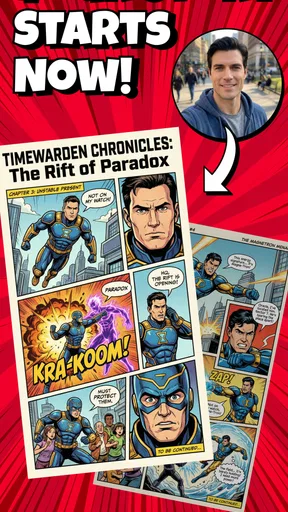
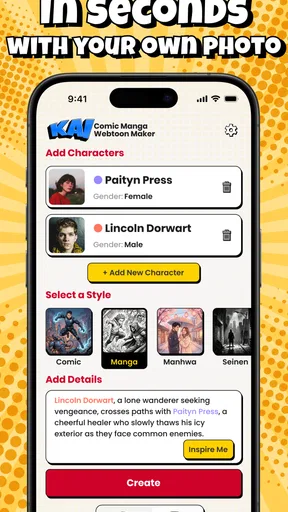
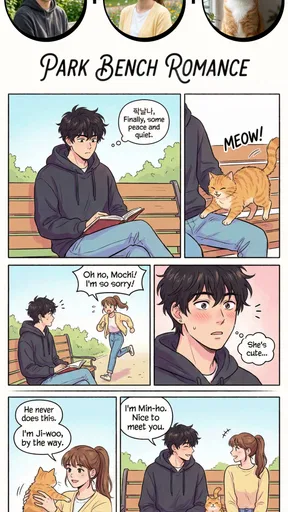
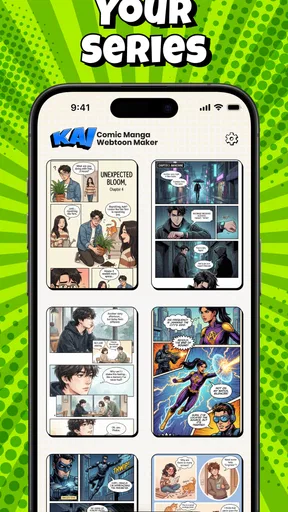
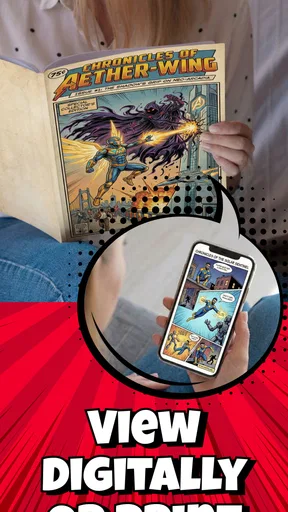
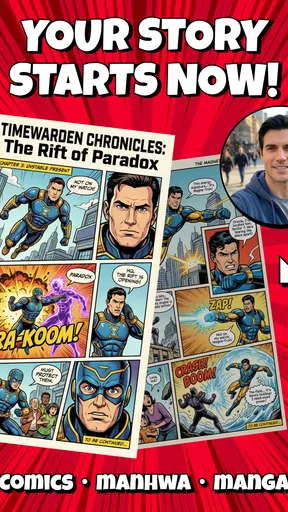
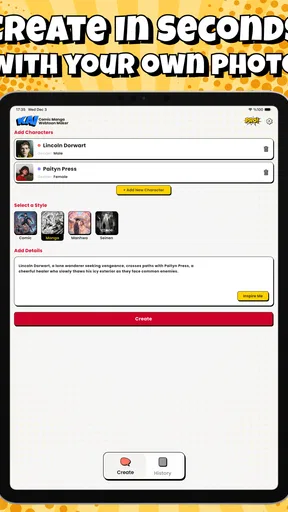
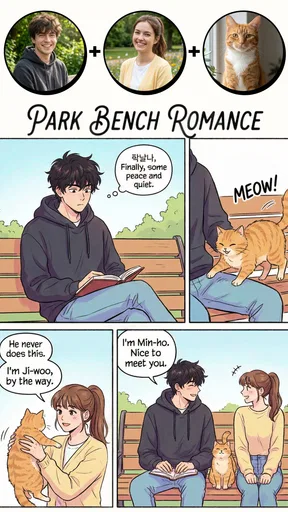
Our Review of KAI: Comic Maker Manga, Manhwa
 Analysis by Appyee
When I’m choosing a comic-making app, I first ask what I want to finish: a quick visual gag, a short scene, or a longer story with recurring characters. That distinction matters because an easy starting point is valuable, but it doesn’t automatically make a tool comfortable for every stage of a project. KAI: Comic Maker Manga, Manhwa is aimed at people who want to shape comics and illustrated fiction, and I’d consider it most seriously if I wanted to move from an idea to a readable page without beginning with a blank canvas and a complicated art setup.
For a first project, I’d keep the goal modest: one scene, a clear beginning and ending, and only a few panels. That makes it easier to judge whether the app’s approach suits me before I invest time in a longer series. If I were planning to draw every detail by hand, I’d also compare it with a dedicated drawing app; if I mainly wanted to arrange a story visually, a comic-focused tool is the more natural place to start.
A practical way to judge the fit
The key question is not simply whether an app has many tools. It is whether its workflow helps you make decisions in the right order: what happens in the scene, how many panels it needs, where the reader looks first, and what deserves emphasis. Templates and panel choices can help a beginner get past the intimidating blank page, but they are only useful when they support the story rather than dictate it.
I’d test the process with a small, everyday scenario: imagine a character missing a bus, then deciding how to handle the rest of the morning. Before adding decorative detail, I’d lay out the turning points as panels and check that the action reads clearly from one to the next. This is a useful test for any comic creator because it reveals whether the tool helps with pacing and composition, not just individual images.
That kind of trial also gives you a sensible way to judge how much control you need. A casual creator may be happy to build from available visual elements, while someone with a specific character design or carefully planned art style may want to bring in their own work. The better fit depends on whether you value quick assembly or detailed control more.
Getting Started with Ease
First things first, downloading the app is a breeze. You can find it on both Android and iOS, which is super convenient. Once you have it installed, the user interface is pretty intuitive. You won’t find yourself lost in a sea of options, which is something I genuinely appreciate. The app starts with a quick tutorial that gets you up to speed without overwhelming you.
Creating your first comic is as simple as tapping a few buttons. The app provides a variety of templates and panels to choose from. This is perfect if you’re new to comic creation and need a little guidance. On the other hand, if you’re a seasoned pro, there’s plenty of room to customize and let your creativity run wild.
Tools and Features Galore
What’s really impressive about KAI: Comic Maker Manga, Manhwa is the range of tools it offers. You’ve got everything from basic drawing tools to more advanced features like layers and filters. And let’s not forget the extensive library of backgrounds and characters. It’s like having a mini comic studio right in your pocket.
The app supports both English and Japanese, which is great for reaching a wider audience. Plus, you can easily share your creations on social media or export them in high-quality formats. The developers clearly put a lot of thought into making this app as versatile as possible.
Drawing and Design Made Simple
If you’re like me and not exactly an artist, don’t worry. The app’s drawing tools are surprisingly forgiving. You can adjust the brush size, opacity, and color with just a few taps. The layer feature is a lifesaver for complex designs, allowing you to edit without messing up your entire page.
There’s also a nifty feature that lets you import your own images. This is perfect if you have sketches or designs you’ve been working on elsewhere. Just import them into the app, and you’re good to go. It really opens up a world of possibilities!
Community and Inspiration
One of the things I love most about KAI: Comic Maker Manga, Manhwa is its community aspect. The app has a vibrant user base that regularly shares their creations. Browsing through the community tab is a great way to get inspiration or feedback on your work.
There are also regular challenges and competitions hosted by the app, which is a fantastic way to push your boundaries and improve your skills. Plus, it’s always fun to see what others are creating and how they’re using the app’s features in unique ways.
Making a short project easier to finish
One practical approach is to separate the writing pass from the drawing pass. I’d first sketch the story beats in plain language, then choose panels and visual elements to match them. This reduces the temptation to spend too long polishing the first image before I know whether the whole scene works. Once the sequence reads clearly, layers give me room to adjust parts of the page without redoing everything.
Imported sketches can also serve as a bridge between a paper notebook or another art tool and the comic layout. I’d use them for the elements that matter most to the story, such as a character’s distinctive pose or a prop that returns later, while relying on the app’s available resources for less important scenery. That trade-off can save time, though a creator who wants every element to share a very specific hand-drawn style may prefer a dedicated illustration workflow.
For a daily routine, I’d use a short session to make one concrete decision rather than expecting to complete a chapter at once. One day could be devoted to arranging the panels; another could focus on adding backgrounds or refining a character. This makes the project easier to resume and helps prevent a large idea from becoming an unfinished collection of half-made pages.
Where a comic maker differs from other creative apps
Compared with a general drawing app, a comic-making app is most appealing when the page sequence matters as much as the artwork. Drawing software may offer a more comfortable environment for detailed painting, but it can leave panel layout and storytelling organization to the user. A comic-focused workflow is more helpful when the aim is to put a scene into readable panels and assemble visual material around it.
On the other hand, a writing app is a better fit for someone still developing a plot, dialogue, or a large body of prose. It can keep the words and story notes central without requiring the creator to make visual decisions too early. I’d move into comic creation when I was ready to turn a scene into images, rather than treating a visual editor as a replacement for planning a complicated story.
There is also a difference between making a quick personal comic and producing a tightly controlled professional book. Templates, characters, and backgrounds can help with speed and consistency, but creators with exacting requirements for every visual detail may prefer separate art tools and a more manual layout process. Neither approach is automatically better; the choice depends on whether convenience or fine-grained control is the priority.
Who should think twice before committing
I’d recommend trying this style of tool to a beginner, a hobbyist with a story idea, or someone who wants to make a short comic without first mastering a full illustration workflow. It also suits people who enjoy experimenting with visual scenes and want to share finished work. The app is less compelling for someone who only wants to read comics, needs a text-first place to draft a novel, or expects a specialized drawing program to handle every part of an art-heavy project.
Before building a long series, I’d make a sample page and check whether the available visual resources support the tone I have in mind. A lighthearted scene may be easy to prototype with a compact selection of assets, while a story that depends on precise costumes, locations, or visual continuity may require more custom work. Testing that early is better than discovering halfway through a larger project that the workflow does not match the style.
Community, sharing, and realistic expectations
The community side can be useful for seeing how other people approach a page, especially when I’m stuck on a layout or looking for a prompt to get drawing again. Challenges can add structure to an otherwise open-ended hobby. I’d treat community participation as optional inspiration, though, not as a requirement for making progress or a substitute for feedback from someone whose creative judgment I trust.
Sharing a finished piece is a different decision from simply creating it. If I were posting a comic publicly, I’d review every panel and check that the exported result tells the story as intended before sharing. A quick visual pass can catch confusing reading order, small details that compete with the dialogue, or a background that draws attention away from the action. That final check is worthwhile even when the comic is only meant for friends.
For anyone wondering whether the app is free to start with, it is free to download, while in-app purchases range from $3.99 to $79.99 per item. I’d explore the basic workflow and make a small test project before spending money. That way I can decide whether the creative process itself suits me, rather than paying in the hope that extra purchases will fix a mismatch in style or workflow.
What to check before starting a larger comic
The app is published by MOBIVERSITE YAZILIM BILISIM REKLAM VE DANISMANLIK, and its current version is 1.0.9. It has a 4.0 average from around 25,000 ratings, with over 500,000 installs. Those figures suggest that people are using it, but they cannot tell me whether its particular creative approach fits my project; a short hands-on test is still the best guide.
It is rated Teen, so I would keep that audience in mind when choosing themes and sharing work. The minimum operating system is Android 7.0. If I planned to use it on an older device, I’d check compatibility before building a project around it. Those are small checks, but they can prevent an avoidable interruption after I’ve already started creating.
One question many new creators have is whether they need to be good at drawing before they begin. I don’t think so: the app’s approachable tools and visual resources make experimentation possible without treating polished illustration as a prerequisite. The more useful question is whether I’m comfortable shaping a story with the tools available, and whether I’m willing to refine a rough first version into a readable sequence.
Another practical concern is whether a creator can bring an existing idea into the app. Importing images offers one route for incorporating sketches or designs made elsewhere. I’d keep those source files organized separately as well, especially for a project I care about, so that I can continue refining the artwork in the tool where I originally made it if needed.
Final Thoughts
In a nutshell, KAI: Comic Maker Manga, Manhwa is a must-try for anyone interested in comic creation. Whether you’re a newbie or a veteran artist, the app offers a wealth of tools and features to explore. It strikes a great balance between simplicity and depth, making it accessible yet powerful.
If you’ve ever dreamed of creating your own manga or manhwa, this app might just be the perfect starting point. So why wait? Give it a shot and unleash your creativity!
My recommendation is to begin with a single scene, not a sprawling series: it gives you a fair test of the panels, drawing tools, imported artwork, and sharing workflow without turning the first attempt into a major commitment. If that small project feels enjoyable, the app may be a practical home for more comics. If your priority is highly detailed illustration or long-form prose, a specialized art or writing tool may serve you better, with this app reserved for the point when you are ready to build pages.
Verdict
Strengths of KAI: Comic Maker Manga, Manhwa
- User-friendly interface for easy navigation.
- Wide range of manga creation tools.
- High-quality export options.
- Regular updates with new features.
- Integrates with cloud storage services.
Limitations of KAI: Comic Maker Manga, Manhwa
- Limited free version features.
- Occasional app crashes reported.
- In-app purchases can be pricey.
- Requires internet for some features.
- Steep learning curve for beginners.
Other Releases by MOBIVERSITE YAZILIM BILISIM REKLAM VE DANISMANLIK
View All
Donna AI Song & Music Maker
Music & Audio4.7

AI Photo Video Generator: IRMO
Art & Design4.5

Landscape Design - AI Garden
House & Home4.4
Similar Picks in This Category
View All
WEBTOON: Manga, Comics, Manhwa
NAVER WEBTOON4.6

MangaToon: Comic & Manga
MangaToon4.3

네이버 웹툰 - Naver Webtoon
NAVER WEBTOON4.3

Tapas – Comics and Novels
Tapas Entertainment Inc.4.2

Lezhin Comics - Daily Releases
LEZHIN ENTERTAINMENT3.3

WebComics - Webtoon & Manga
WEBCOMICS HOLDINGS HK LIMITED4.4
Frequently Asked Questions
What is KAI: Comic Maker Manga, Manhwa?
KAI: Comic Maker Manga, Manhwa is a versatile app designed for creating and editing comics and manga. It offers a range of tools specifically tailored for artists and writers who want to bring their stories to life. From customizable templates to a vast library of assets, this app caters to both beginners and seasoned creators.
Is KAI suitable for beginners?
Yes, KAI is designed to be user-friendly for beginners while still offering advanced features for experienced users. The app includes tutorials and guides to help newcomers learn the basics of comic creation, making it accessible to anyone interested in starting their own manga or manhwa projects.
What features does KAI offer for comic creation?
KAI provides a comprehensive set of features including customizable templates, a wide array of brushes and fonts, and a library of pre-made backgrounds and characters. Additionally, it supports layer management, color correction, and export options to various formats, ensuring a professional finish to your work.
Can I share my comics created on KAI with others?
Absolutely! KAI allows you to export your comics in multiple formats, making sharing easy across different platforms. Whether you want to post your work on social media, share it with friends, or even publish it online, KAI provides the necessary tools to do so seamlessly.
Is KAI available on both Android and iOS?
Yes, KAI is available for both Android and iOS devices. You can download it from the Google Play Store or the Apple App Store. Make sure to check the system requirements to ensure compatibility with your device before downloading.
